AppGate OTP2.0
Publisher Description
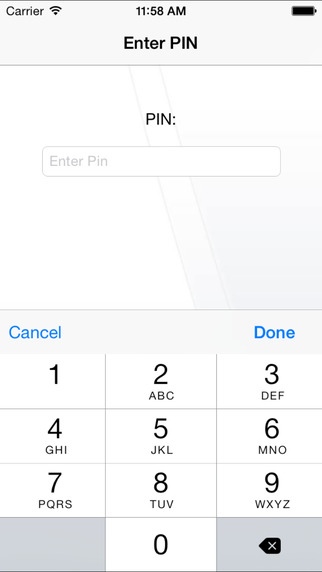
AppGate OTP authenticator provides industry standard strong authentication, which is fully integrated within the AppGate Server. OTP is easy to initialise and use particularly where organizations choose not to deploy any additional hardware or servers.
One-time passwords are generated through the AppGate OTP app on the user s iOS device. These OTPs are sequence based so both the app and the AppGate Security Server needs to be set up with a common start value. After that, each time the user wants to authenticate they simply generate the next OTP in the sequence and enter it into the AppGate login dialog box.
To set up 2 factor authentication, OTP can be combined with ordinary passwords or certificates.
*** IMPORTANT NOTES***
1 > This app is only for iOS versions up to 8.3 (there will be 2.0.1 released for 8.4 shortly)
2 > If you upgrade to this version your existing OTP seeds will be lost and you will be required to re-initialise your app.
Requires iOS 7.0 or later. Compatible with iPhone, iPad, and iPod touch.
About AppGate OTP
The company that develops AppGate OTP is Cryptzone Group AB. The latest version released by its developer is 2.0.
To install AppGate OTP on your iOS device, just click the green Continue To App button above to start the installation process. The app is listed on our website since 2011-06-08 and was downloaded 40 times. We have already checked if the download link is safe, however for your own protection we recommend that you scan the downloaded app with your antivirus. Your antivirus may detect the AppGate OTP as malware if the download link is broken.
How to install AppGate OTP on your iOS device:
- Click on the Continue To App button on our website. This will redirect you to the App Store.
- Once the AppGate OTP is shown in the iTunes listing of your iOS device, you can start its download and installation. Tap on the GET button to the right of the app to start downloading it.
- If you are not logged-in the iOS appstore app, you'll be prompted for your your Apple ID and/or password.
- After AppGate OTP is downloaded, you'll see an INSTALL button to the right. Tap on it to start the actual installation of the iOS app.
- Once installation is finished you can tap on the OPEN button to start it. Its icon will also be added to your device home screen.
